Push grades to assignments Classroom refuses to update.
Google's API blocks grade writes on assignments created directly in the Classroom UI. This extension runs inside your own browser, no OAuth, no servers, no data leaves your machine.
Webapp handles the API path. This handles the rest.
Drafts, backups, restorable for 30 days.
Every third-party tool hits this wall. Google's design choice.
No API, no OAuth — same flow as the webapp.
Use the webapp.Pick a course, paste your sheet, map columns, push. Drafts by default. Backups for 30 days. Sign in with Google and you're done.
Add the Chrome extension.Google's API refuses grade writes on assignments their own UI created — every third-party tool hits this wall. The extension acts as your browser, not as an API client. No OAuth, no servers.
Five screens. Two minutes.
Real screenshots from the extension popup.
- 1
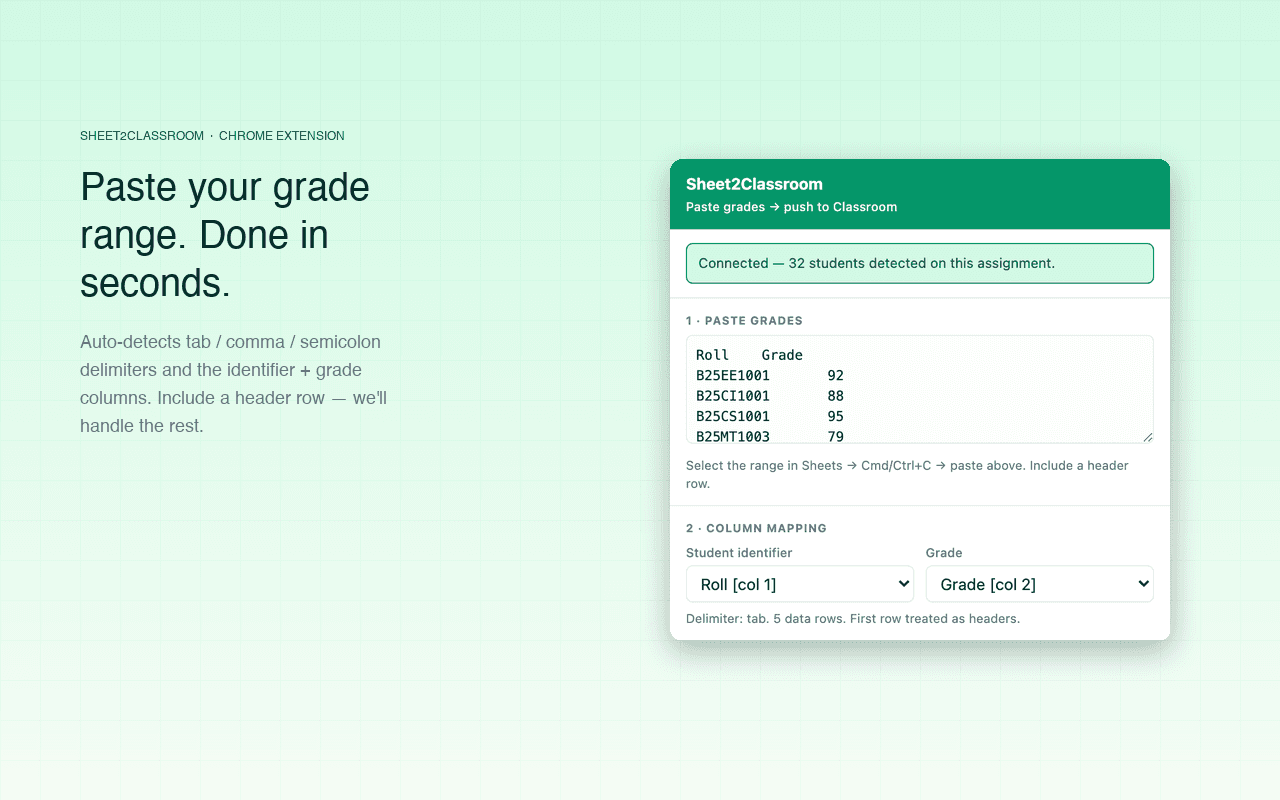
Paste a TSV grade range
Open the extension on a Classroom assignment. Auto-detects identifier + grade columns from your header row.
- 2
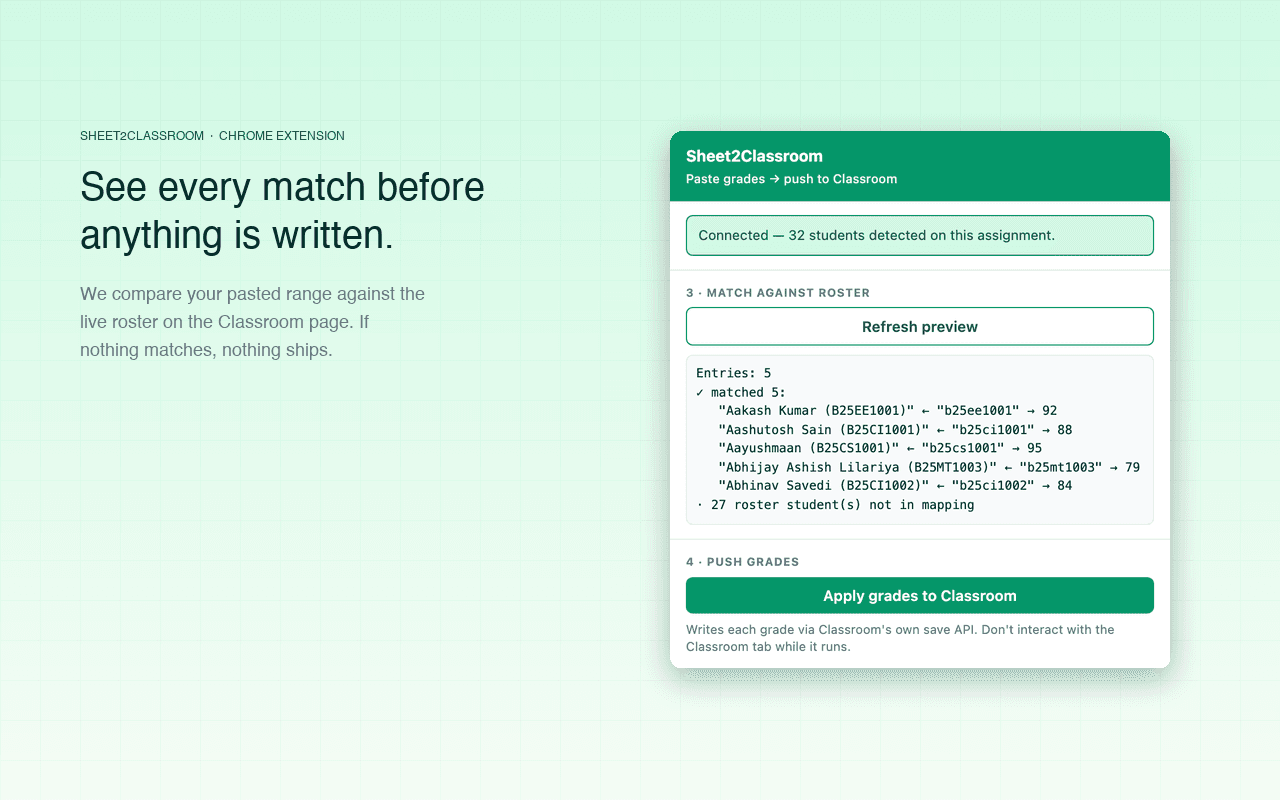
Preview every match against the live roster
See exactly which student each grade lands on. Mismatches are flagged; nothing is guessed.
- 3
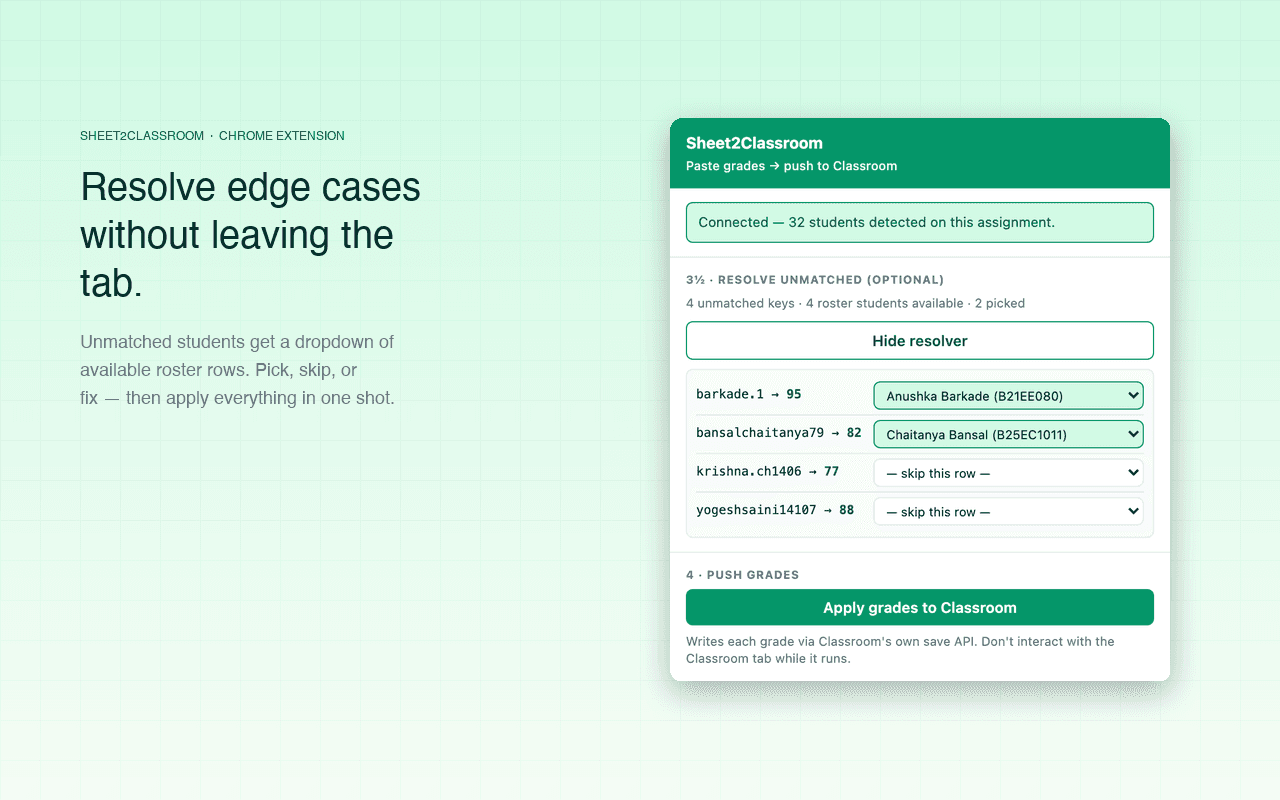
Resolve unmatched rows from a dropdown
Personal-Gmail student? Hidden email? Pick the right student from the roster, or skip the row.
- 4
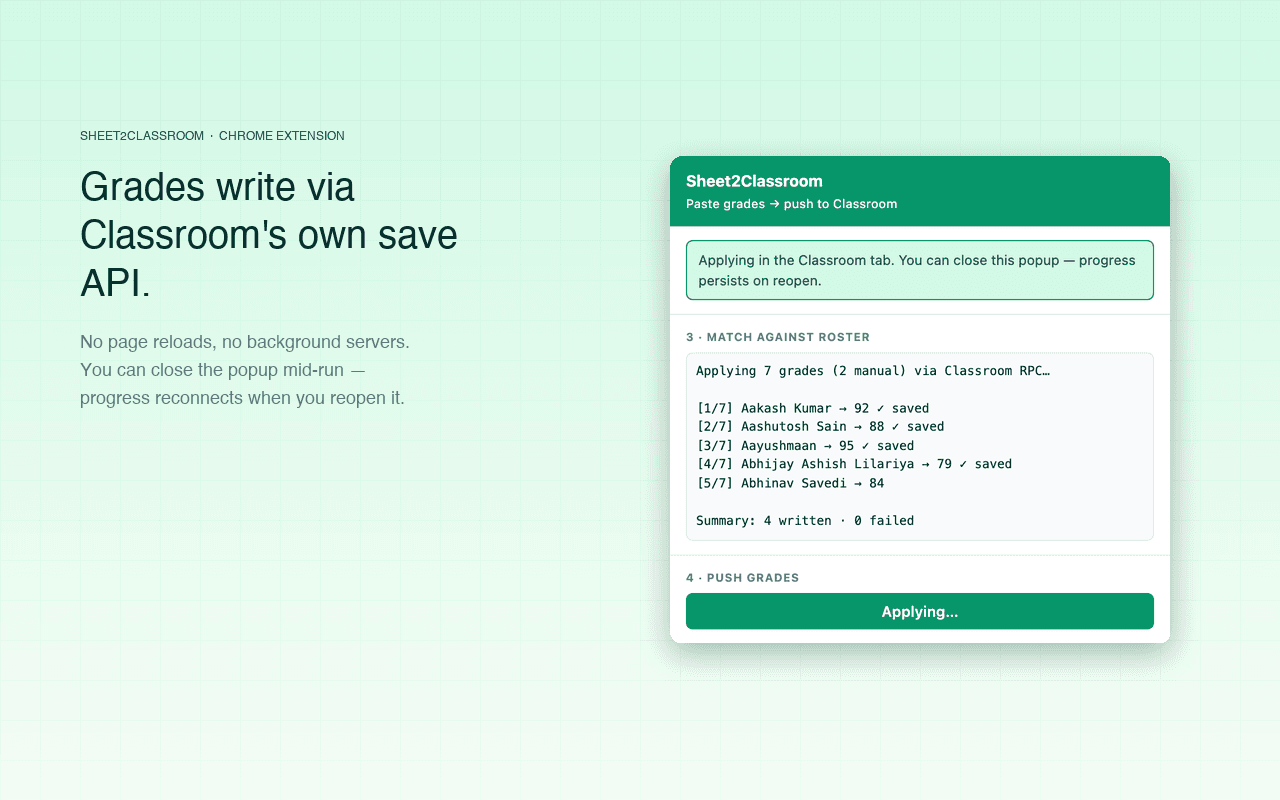
Click apply — grades stream in
One save per student. The popup shows live progress. Don’t close the tab — the extension drives it.
- 5
Done. Every grade landed.
Refresh the assignment if you want to see them in Classroom’s own UI.
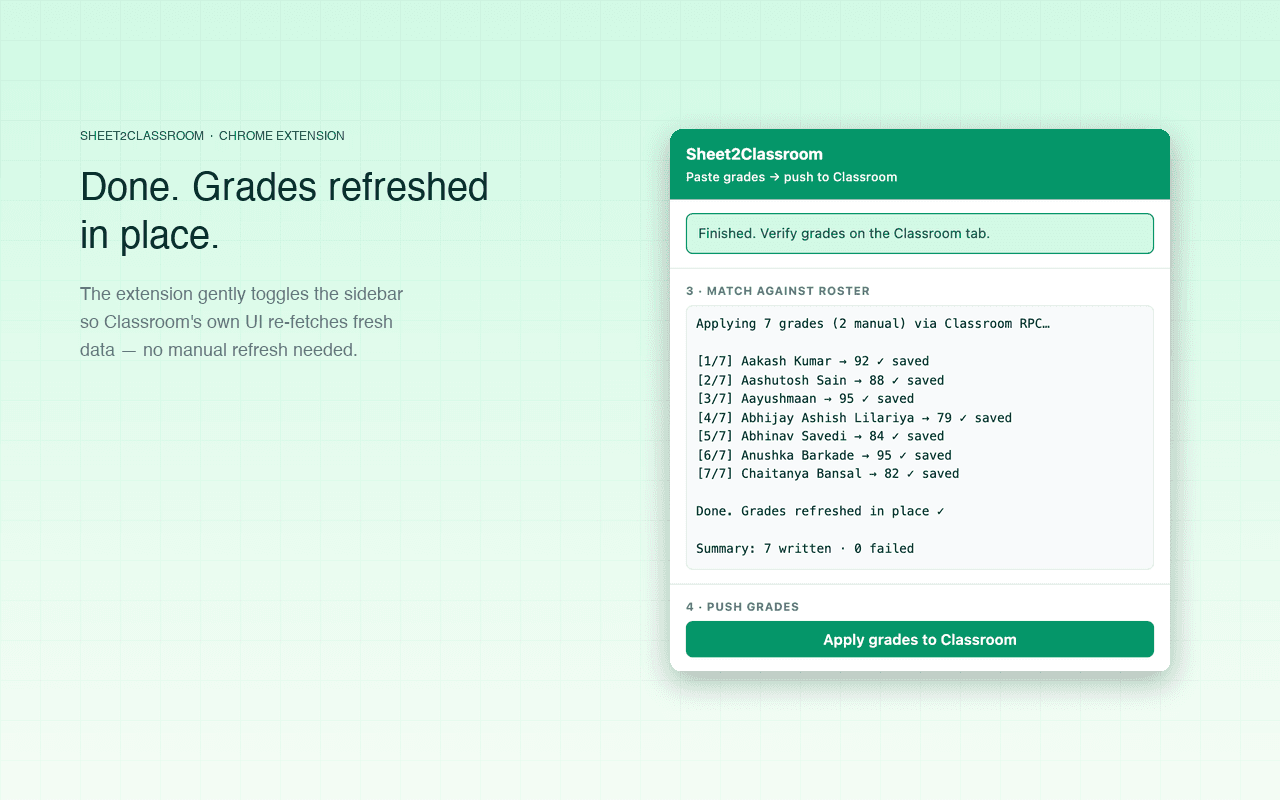
One click.
Auto-updates from then on.
Scoped to one domain. One tab at a time.
No OAuth, no servers, no analytics. Audit-friendly by design.
- Only Classroom
- Host permission scoped to
https://classroom.google.com/*. No other domain. No<all_urls>. - Only the active tab
activeTabgrants access only when you click the icon, only for that tab, only for the duration of that interaction.- Local storage only
storageremembers your last pasted range so you don't re-paste. Lives inchrome.storage.local, never synced.- No OAuth, no identity
- Uses your existing Classroom session. Doesn't prompt for credentials, doesn't request a Google scope.
Common errors and fixes.
“Couldn’t read Classroom session tokens.”
“HTTP 401” or “HTTP 403” on save
The grade looks stale when I click the student
My school blocks installs from the Chrome Web Store
idfbgmnhophmipceffhacmdeabnppmlp— that's all they need to push it to your account.Ready to fill the API gap?
Two minutes, no account, no servers. Uninstall anytime from chrome://extensions.
Stuck on install or seeing an error not above? Email support@sheet2classroom.app